
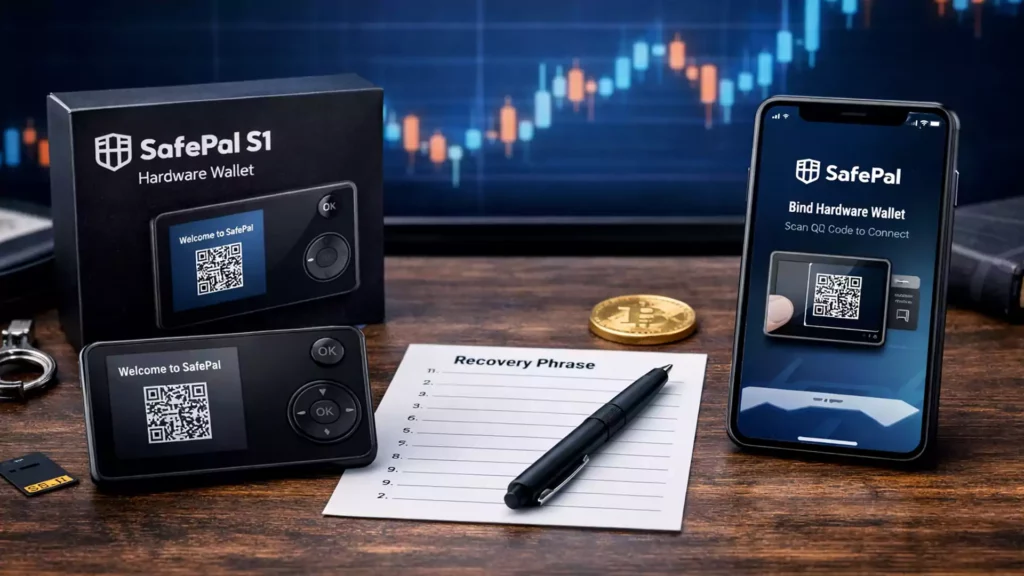
With the rise of cryptocurrency adoption, securing digital assets has become more important than ever. Hardware wallets are considered one of the safest ways to store crypto, and SafePal S1 stands out as a secure, affordable, and fully offline solution.
If you’re using a SafePal S1 hardware wallet for the first time, this step-by-step guide will walk you through the entire setup process in a simple and beginner-friendly way.
What Is SafePal S1 Hardware Wallet?
SafePal S1 is a 100% air-gapped hardware wallet, meaning it never connects to the internet via USB, Bluetooth, or Wi-Fi. It uses QR-code signing to keep your private keys fully offline, protecting your funds from online hacks.
Key features of SafePal S1:
- Air-gapped security (no USB/Bluetooth)
- Secure Element (EAL5+ certified)
- Supports thousands of coins & tokens
- Works with the SafePal mobile app
- Self-destruct mechanism if tampered
Things You Need Before Setup
Before starting, make sure you have:
- SafePal S1 hardware wallet (new & sealed)
- SafePal mobile app (Android or iOS)
- Pen & recovery sheet (included in the box)
- A quiet and secure environment
⚠️ Never take photos of your recovery phrase or store it online.
Step-by-Step Guide to Set Up SafePal S1
Step 1: Check the Package Seal
When you unbox your SafePal S1:
- Ensure the package is sealed and untampered
- Verify the anti-tamper label
- If anything looks suspicious, do not use the device
Step 2: Power On the Device
- Press and hold the power button on the SafePal S1
- Choose your preferred language
- Read and accept the terms
Step 3: Create a New Wallet
On the SafePal S1 screen:
- Select “Create Wallet”
- Set a strong PIN code
- Avoid simple patterns
- Do not share it with anyone
This PIN protects your wallet from unauthorized access.
Step 4: Backup Your Recovery Phrase
This is the most important step.
- The device will display a 12-word or 24-word recovery phrase
- Write each word in exact order on the recovery sheet
- Double-check spelling and sequence
- The wallet will ask you to verify the words
✅ This recovery phrase is the only way to restore your wallet if the device is lost or damaged.
❌ Never:
- Screenshot it
- Store it on the cloud/email
- Share it with anyone
Step 5: Install the SafePal Mobile App
- Download the official SafePal app from:
- Google Play Store
- Apple App Store
- Open the app and select “Bind Hardware Wallet.”
Step 6: Pair SafePal S1 with the App
- Open the camera inside the SafePal app
- Scan the QR code displayed on your SafePal S1
- This pairs the wallet securely without any physical connection
Your private keys never leave the device.
Step 7: Add Crypto Assets
Once paired:
- Choose the cryptocurrencies you want to manage
- SafePal supports Bitcoin, Ethereum, BNB, Polygon, Solana, and thousands of tokens
- Your wallet is now ready to receive crypto
How to Receive Crypto on SafePal S1
- Open the SafePal app
- Select the coin you want
- Tap Receive
- Verify the address on the hardware wallet screen
- Share the address or QR code to receive funds
Security Tips for SafePal Users
- Store your recovery phrase in multiple secure locations
- Never trust messages asking for recovery words
- Always verify transaction details on the device screen
- Update the SafePal app only from official stores
Final Thoughts
Setting up the SafePal S1 hardware wallet is straightforward, even for beginners. Once configured, it provides one of the highest levels of security available for crypto storage — fully offline, tamper-resistant, and user-friendly.
If you’re serious about protecting your crypto assets, SafePal S1 is a smart long-term choice.

I am Pawan Kashyap currently living in Amritsar. I always try to grab new things from the cryptocurrency market. From my observations and trends in the market, I always try to provide the best and accurate information in the form of articles from this blog. Follow us on Facebook, Instagram, and Twitter to join us.